How to Compress a PDF on Your Phone for Online Forms
You are filling in an application on your phone. Everything goes fine until the upload box says “File size must be less than 200KB.” Your PDF is 3MB, and there is no laptop nearby.
Good news. You can fix this in under a minute, right in your phone’s browser. You do not need to install an app, and your document does not have to be uploaded anywhere.
This guide shows the exact steps on Android and iPhone, how to pick the right target size, and what to do when a portal still says no.
What you need before you start
- Your PDF saved on the phone. It can be in Downloads, Files, Google Drive or iCloud Drive.
- A browser. Chrome on Android or Safari on iPhone both work.
- The size limit from the form. Look for text like “max 200KB” or “under 1MB” near the upload button.
If your document is still on paper, scan it first. Our guide to scanning documents to a PDF under 200KB shows how to get a small file from the start.
How to compress a PDF on Android
- Open Chrome and go to our PDF compressor.
- Choose your target size. Tap 200KB, or pick another size the form asks for.
- Tap the upload area. Choose Files or Browse, then open Downloads, Google Drive or wherever your PDF is saved.
- Wait a few seconds while the file is compressed on your phone.
- Check the new size shown on screen, then tap Download.
The file lands in your Downloads folder. You can open it from the Files app, or in Chrome by tapping the three dot menu and then Downloads. Google’s Chrome help page explains where downloads go on Android if you cannot spot it.
How to compress a PDF on iPhone
- Open Safari and go to our PDF compressor.
- Pick your target size, such as 200KB.
- Tap the upload area, then tap Browse to choose a PDF from the Files app. You can also pick one from iCloud Drive or Google Drive here.
- Let the compressor finish. It runs inside Safari on your iPhone.
- Tap Download, then confirm.
Safari saves it to the Downloads folder in the Files app, which is inside iCloud Drive by default. Apple’s guide to finding downloads on iPhone shows both places to look.
Why we suggest a browser tool and not an app
Most PDF apps ask for storage access, show ads or push a subscription. Many online sites also send your file to their server to process it.
Our compressor works differently. The whole job runs inside your browser, using your phone’s own processor. Your PDF is never uploaded. That matters when the file is a mark sheet, an ID card, a bank statement or anything else you would not hand to a stranger.
There is also a practical reason. Apps usually offer vague presets like “low” or “high”. Online forms ask for an exact number. A tool that lets you type a target size gets you under the limit on the first try.
Choosing the right target size
Always aim a little below the limit. Here is why.
Some websites count 1KB as 1,024 bytes. Others count it as 1,000 bytes. A file of 204,000 bytes is under 200KB on one system and over it on another. Leaving a small gap avoids that surprise.
| Form limit | Target we suggest |
|---|---|
| 100 KB | 95 KB |
| 200 KB | 190 KB |
| 300 KB | 290 KB |
| 500 KB | 480 KB |
| 1 MB | 950 KB |
| 2 MB | 1,900 KB |
Use the Custom option in the tool to type any of these numbers. Not sure what your form allows? Our document upload size guide lists the official PDF limits for NEET, UPSC, NSP, Aadhaar and Passport Seva.
Real results from our tests
We compressed real documents with the same tool you will use on your phone. Here is what came out:
| Original file | After compressing | What it was |
|---|---|---|
| 2.76 MB, 2 pages | 168 KB | Document with photos, text still selectable |
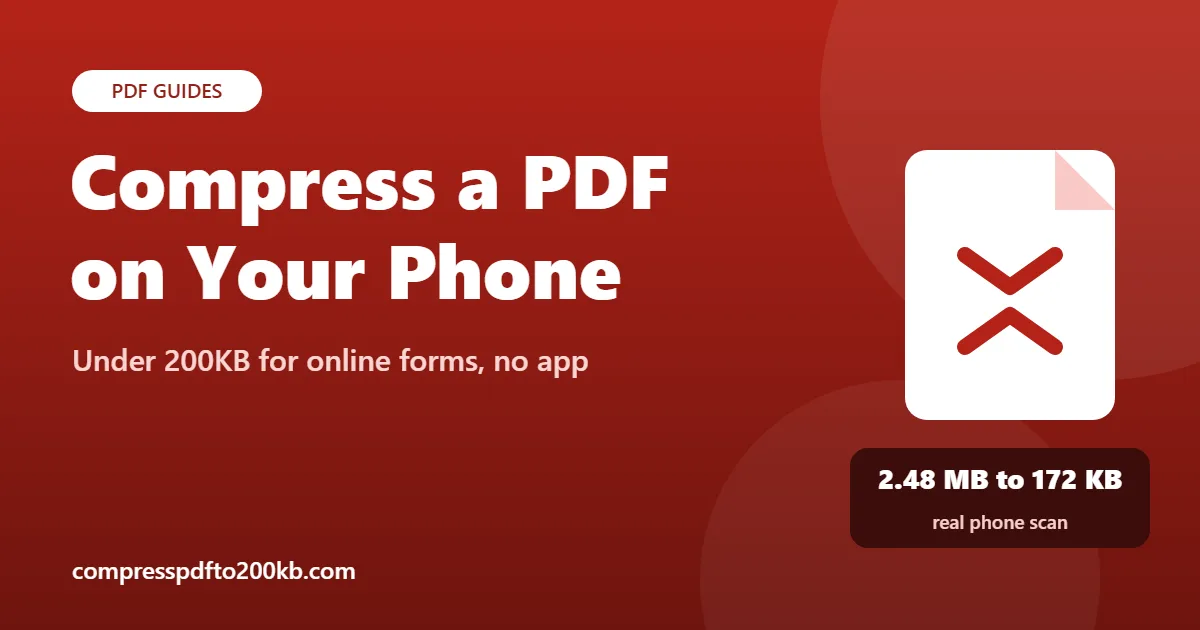
| 2.48 MB | 172 KB | Phone scan of a form |
| 7.96 MB | 152 KB | Report with four photos |
| 10.02 MB | 191 KB | Large multi page scan |
Files that are mostly typed text shrink less, because they are often small already. Scans and photo heavy files shrink the most. If you want to know why, our guide on why a PDF gets so large breaks down every cause with numbers.
How to check the file size on your phone
Before you upload, confirm the size yourself.
On Android
- Open the Files app (or My Files on Samsung).
- Go to Downloads.
- Touch and hold the PDF, then tap the info or details option.
On iPhone
- Open the Files app and go to Downloads.
- Touch and hold the PDF.
- Tap Get Info to see the exact size.
When the portal still rejects your PDF
Sometimes the size is fine and the upload still fails. These are the usual reasons and fixes.
The file name has spaces or symbols
Older government and university portals can choke on long names, spaces or brackets. Rename the file to something short like marksheet.pdf before uploading. On Android, rename in the Files app. On iPhone, touch and hold the file in Files and tap Rename.
The PDF is password protected
Bank statements and some electronic documents come locked. Many portals cannot read them. Open the file with its password and save or print a fresh copy as PDF, then compress that copy.
The form wants a JPG, not a PDF
Read the upload label again. If it says JPG or JPEG, turn your page into an image with our PDF to JPG tool. Each page comes out under your chosen size.
The page is hard to read after compressing
Very small targets can soften scans. Try a slightly higher target if the form allows it, or rescan the page in better light. Our guide on how to compress a PDF to 200KB without losing quality has more tips for keeping text sharp.
The upload button does nothing on your phone
Some portals are built for desktop browsers. Try switching Chrome or Safari to desktop site from the browser menu, then upload again.
Tips for faster compressing on a phone
- Close other heavy tabs and apps. Compressing a large PDF uses memory, and phones with little RAM may slow down.
- Keep the screen on. If the phone locks during a long job, the browser may pause it.
- Save files from WhatsApp first. Open the PDF in WhatsApp, use Share, then save it to Files. The compressor can then find it easily.
- Do one document at a time for very large files over 50MB.
FAQ
Can I compress a PDF on my phone without an app?
Yes. Open our PDF compressor in Chrome or Safari, pick a target size, choose your file and download the result. Everything happens in the browser, so you do not need to install anything.
Is it safe to compress a PDF with an online tool on my phone?
It depends on the tool. Many online compressors upload your file to their servers. Ours processes the PDF inside your browser, so the document stays on your phone the whole time.
How do I reduce a PDF to 200KB on my phone?
Open the compressor, tap 200KB as your target, choose the PDF and wait a few seconds. Download the result and check its size in your Files app before uploading.
Where does the compressed PDF save on my phone?
On Android it goes to the Downloads folder, which you can reach from the Files app or Chrome’s Downloads menu. On iPhone it goes to the Downloads folder in the Files app, usually inside iCloud Drive.
Will compressing my PDF make the text blurry?
Typed text stays sharp, because our tool keeps real text as text and only shrinks the images. Scanned pages are images, so they can soften at very small sizes. Choosing a target close to the form’s limit keeps scans as clear as possible.
Why does the portal say my file is too big when it shows 200KB?
The portal may count 1KB as 1,000 bytes instead of 1,024. Your file can be a few thousand bytes over its limit. Compress again with a target of 190KB to leave a safe margin.